🐳 Dockhand – The Docker Manager Your Homelab Has Been Waiting For

What I’m Using to Manage Docker in My Homelab – Dockhand

Been running Dockhand in my homelab for a bit now and figured I’d share it. It’s a self-hosted Docker management UI — think Portainer, but lighter and a lot less fuss to get going.

At its core it gives you a clean web interface to manage your containers, view live logs and resource usage, an in-browser terminal, a visual Compose editor, and even GitOps-style stack deployments straight from a repo. It runs on SQLite by default so there’s no extra database to set up, and it plays nicely on a Raspberry Pi.
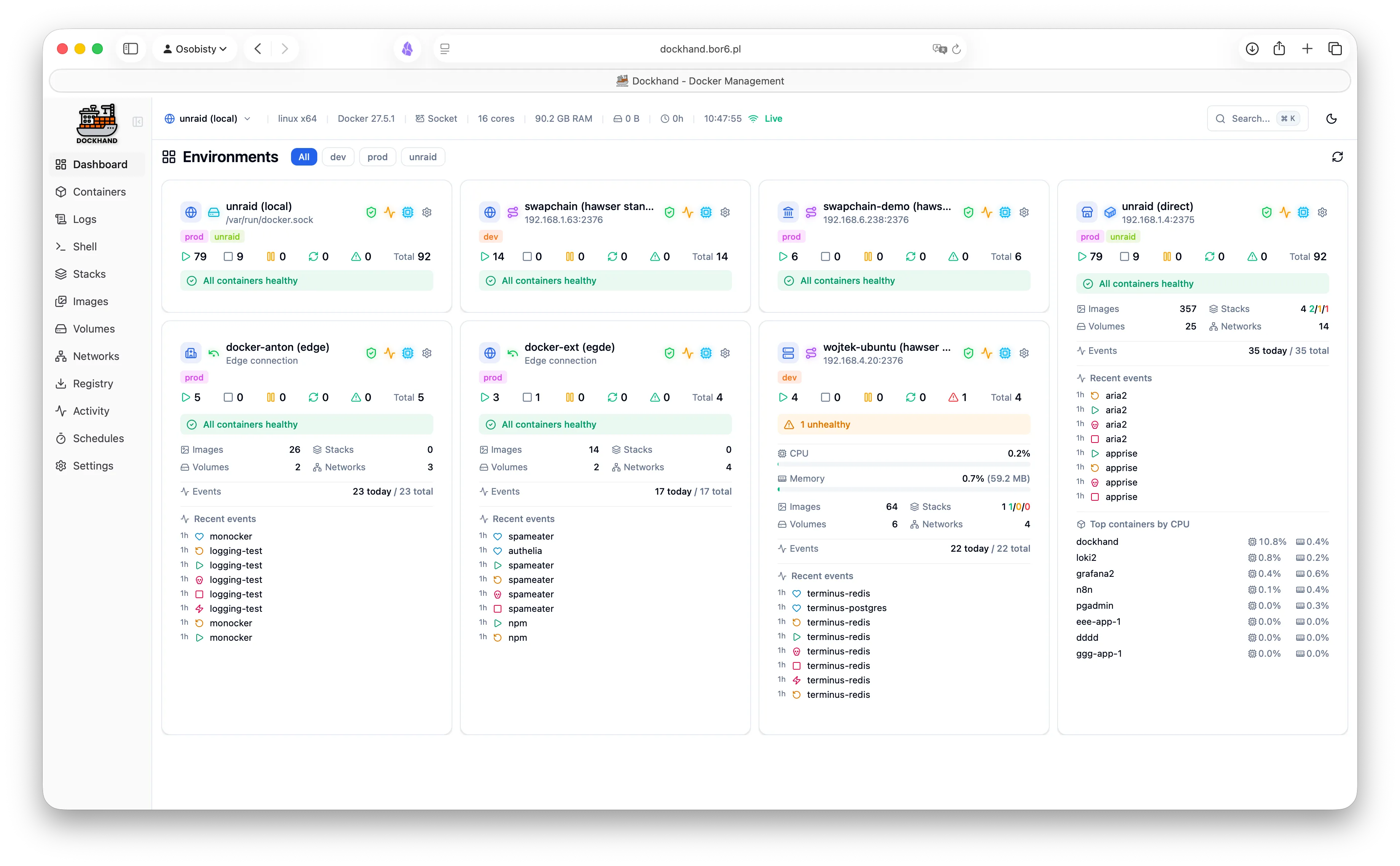
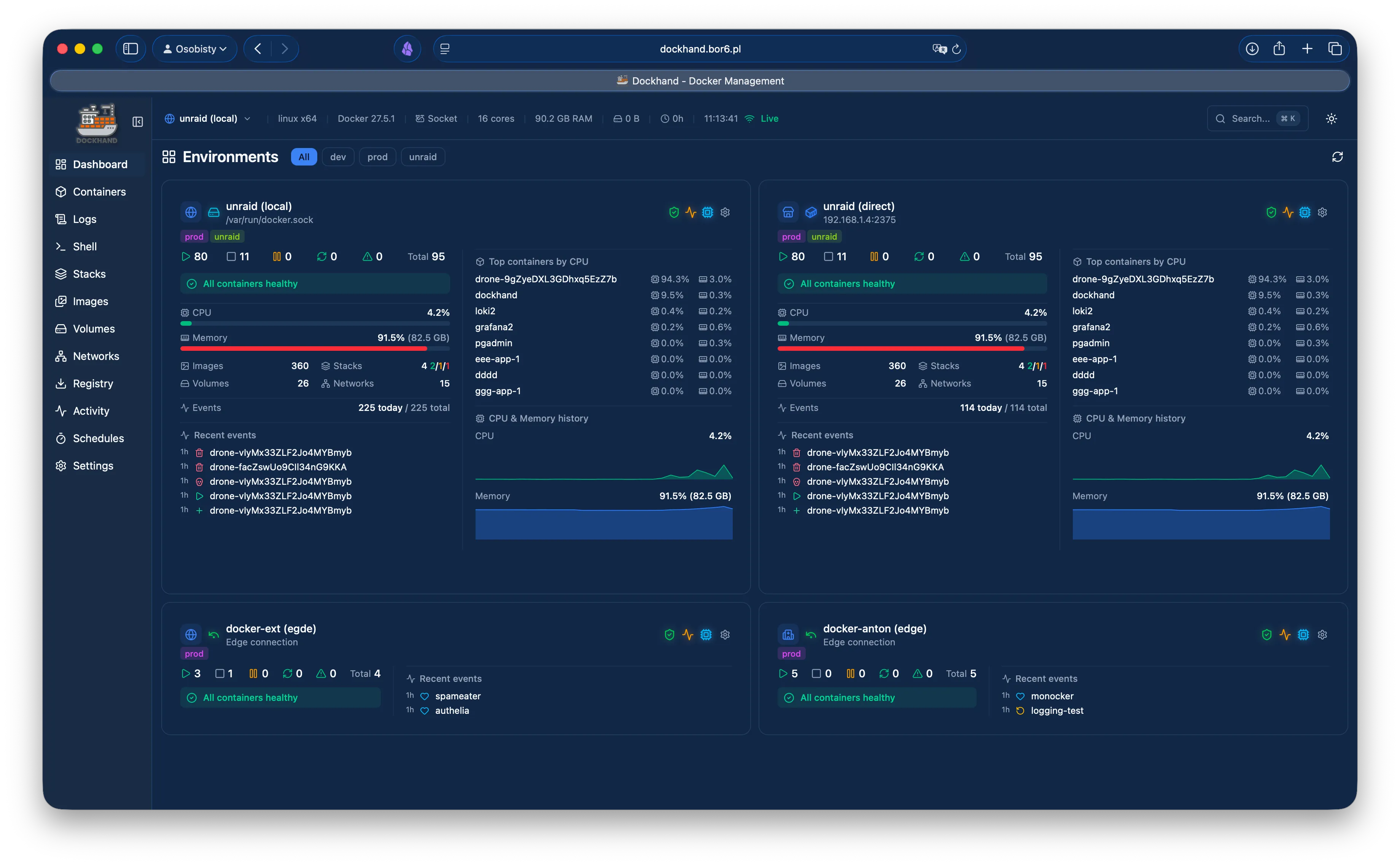
You can get it running with a single command:

bash

docker run -d \
  --name dockhand \
  --restart unless-stopped \
  -p 3000:3000 \
  -v /var/run/docker.sock:/var/run/docker.sock \
  -v dockhand_data:/app/data \
  fnsys/dockhand:latest

Or if you prefer Compose:

services:
  dockhand:
    image: fnsys/dockhand:latest
    container_name: dockhand
    restart: unless-stopped
    ports:
      - 3000:3000
    volumes:
      - /var/run/docker.sock:/var/run/docker.sock
      - dockhand_data:/app/data

volumes:
  dockhand_data:

Need PostgreSQL instead of SQLite?

services:
  postgres:
    image: postgres:16-alpine
    environment:
      POSTGRES_USER: dockhand
      POSTGRES_PASSWORD: changeme
      POSTGRES_DB: dockhand
    volumes:
      - postgres_data:/var/lib/postgresql/data

  dockhand:
    image: fnsys/dockhand:latest
    ports:
      - 3000:3000
    environment:
      DATABASE_URL: postgres://dockhand:changeme@postgres:5432/dockhand
    volumes:
      - /var/run/docker.sock:/var/run/docker.sock
      - dockhand_data:/app/data
    depends_on:
      - postgres

volumes:
  postgres_data:
  dockhand_data:

Spin that up and hit localhost:3000 and you’re in.

For screenshots and the full feature breakdown, check out the GitHub repo: :backhand_index_pointing_right: https://github.com/Finsys/dockhand

Worth a look if you’re tired of living in the CLI or wrestling with heavier management tools.

1 Answer

1

Wanted to follow up and mention Hawser, which is the companion agent that lets you connect remote Docker hosts to Dockhand. Super useful if you’re running containers on multiple machines — it handles NAT and firewalls cleanly since the agent initiates the outbound connection, so no inbound ports needed on the remote side.

There are a few ways to get it running on your remote host. My preferred method is Docker Compose, but I’ll cover all the options.

Docker Compose (recommended)

yaml

services:
  hawser:
    image: ghcr.io/finsys/hawser:latest
    container_name: hawser
    restart: unless-stopped
    security_opt:
      - apparmor:unconfined
    cap_add:
      - SYS_ADMIN
    volumes:
      - /var/run/docker.sock:/var/run/docker.sock
      - hawser_stacks:/data/stacks
    ports:
      - "2376:2376"
    environment:
      - DOCKHAND_SERVER_URL=wss://your-dockhand.example.com/api/hawser/connect
      - TOKEN=your-secret-agent-token
      - LOG_LEVEL=info
      - HEARTBEAT_INTERVAL=30
    healthcheck:
      test: ["CMD", "wget", "-q", "--spider", "http://localhost:2376/_hawser/health"]
      interval: 30s
      timeout: 5s
      retries: 3
      start_period: 10s

volumes:
  hawser_stacks:

Docker Run

bash

docker run -d \
  --name hawser \
  -v /var/run/docker.sock:/var/run/docker.sock \
  -v hawser_stacks:/data/stacks \
  -e DOCKHAND_SERVER_URL=wss://your-dockhand.example.com/api/hawser/connect \
  -e TOKEN=your-agent-token \
  ghcr.io/finsys/hawser:latest

Binary Install

If you’d rather run it as a system service, you can install the binary directly:

bash

curl -fsSL https://raw.githubusercontent.com/Finsys/hawser/main/scripts/install.sh | bash

Then configure it:

bash

sudo vim /etc/hawser/config

For Edge Mode (connecting back to Dockhand):

bash

# Edge mode - connect to Dockhand server
DOCKHAND_SERVER_URL=wss://your-dockhand.example.com/api/hawser/connect
TOKEN=your-agent-token

For Standard Mode (direct TCP):

bash

# Standard mode - listen for connections
PORT=2376
TOKEN=your-secret-token

Then enable and start the service:

bash

sudo systemctl enable --now hawser

Whichever method you go with, just swap in your Dockhand server URL and set a matching token, and the remote host will show up in your Dockhand dashboard automatically.

More info at the Hawser repo: :backhand_index_pointing_right: https://github.com/Finsys/hawser